Go to Blogger edit html and find these sentences.Now replace these sentences with your own descriptions.This theme is Bloggerized by NewBloggerThemes.com.
Go to Blogger edit html and find these sentences.Now replace these sentences with your own descriptions.This theme is Bloggerized by NewBloggerThemes.com.
Go to Blogger edit html and find these sentences.Now replace these sentences with your own descriptions.This theme is Bloggerized by NewBloggerThemes.com.
Go to Blogger edit html and find these sentences.Now replace these sentences with your own descriptions.This theme is Bloggerized by NewBloggerThemes.com.
Go to Blogger edit html and find these sentences.Now replace these sentences with your own descriptions.This theme is Bloggerized by NewBloggerThemes.com.
Ubuntu 16.10 Yakkety Yak has been finally released on October 13. Ubuntu team has promised that the new Ubuntu iso is going to be larger from 1.4 GB to 1.5 GB. Apart from that, new Ubuntu brings some very interesting changes in terms of Unity, major apps updates and much more. After six months of preparation, Ubuntu 16.10 made it's way and these are some of the main features that are shipped with it.
Ubuntu 16.10 comes up with new Linux Kernel 4.8 which brings numerous changes and improvements to system stability, performance, power efficiency, and file system handling. Some top features of Linux Kernel 4.8 are as follows:
- Support for overclocking AMD graphic cards - Initial nVIDIA Pascal support in Nouveau driver - Raspberry Pi3 SoC support - ACPI Low-Power Idle support - Support for the Microsoft Surface 3 touch screen - Wider range of audio device, USB and webcam drivers
3. Unity desktop update 7.5 - Unity 8
Ubuntu 16.10 has been officially released with Unity 7.5 but Ubuntu team also shipped it with Unity 8 for preview. Unity 8 will work but you can't experience it's full power jet due to fact it's just preview. Stick to the Unity7.5 until Unity 8 get's it's full power.
4. Libre Office 5.2.2
New Libre Office 5.2 is being shipped with Ubuntu 16.10. Probably on of the most powerful and best alternative to Microsoft Office has received a set's of new features and some of them are:
- New drawing tools - In Libre Writer a Print to File has been added in the list of available printers - Better Google Drive storage authentication handling - Changes is Calc such as removing border from selected cells, you can also chose to remove border from adjacent cells as well - Animation improvement in Impress - sidebar now includes basic description of each effects that is applied to new slide
Full list of changes in new Libre Office 5.2 can be found on the following link:
GNOME Software has also received a few major tweaks in performance and now runs fast as space rocket.
7. Nautilus 3.20
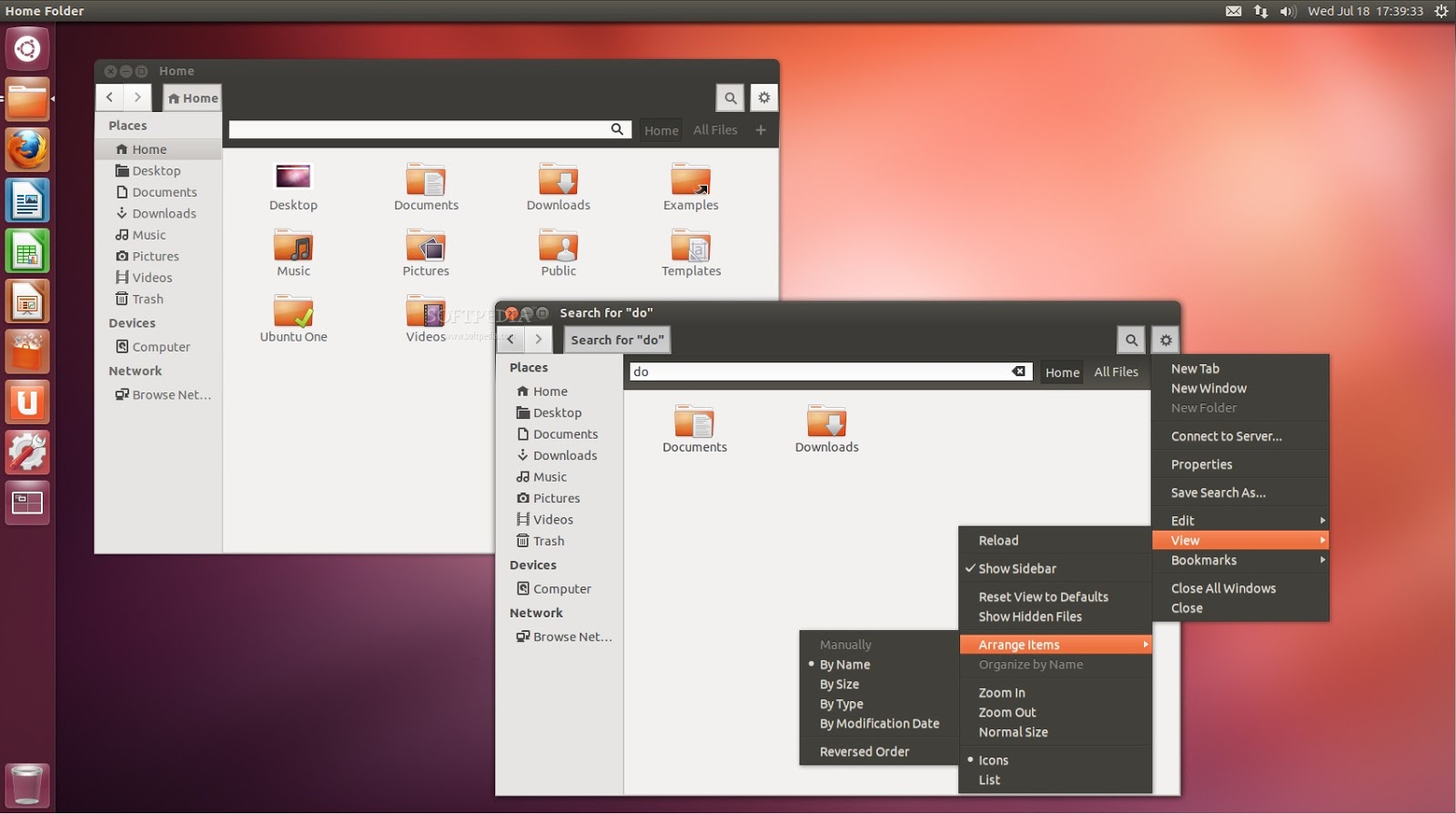
Ubuntu 16.10 comes up with new Nautilus from 3.14 now to version 3.20. Nautilus is one very powerful system file manager since it allows Ubuntu users to gain access to some of the most well secured part of Ubuntu. You get the point!
At the end - are you ready for upgrade?
Ubuntu 16.10 is now here but don't get to rush since it's not required that you have to upgrade right now. If you're using Ubuntu 16.04 than don't worry, you have time to decide weather to upgrade or not. But if you're using Ubuntu 15.04 and plan to upgrade to Ubuntu 16.10 than I highly recommend you that you perform a clean install of Ubuntu 16.10. Decision is all your's, but if you make an upgrade share your experience in the comments bellow.
PHP je nezaobilazan programski jezik kada je rijeć o web developmentu. Sastavni je dio nekih od največih online platformi poput CodeCademy-a koji između ostalog nudi PHP kao kurs, GitHUB-a, SourceForge, popularnih društvenih mreža poput Facebook-a, LinkedIn-a, Twitter-a i drugih. S druge strane, PHP koristi i popularni WordPress i Blogger čiji pluginovi su pisani isključivo koristeći PHP. U ovom stručnom članku imate priliku da saznate kako instalirati PHP na Ubuntu Linux te pokrenuti svoj prvi PHP program. Saznat ćete kako postaviti Ubuntu Server okruženje kako bi se vaš PHP program mogao uspješno pokrenuti te kako biste vidjeli krajnji rezultat.
Ključne rijeći: PHP, Apache, Ubuntu, Linux, Server, Kako da,
Mnogo je razloga zašto za programiranje odabrati Linux uopšte, odnosno Ubuntu. Bilo da programirate i razvijate C++ desktop aplikacije ili web development HML/CSS, PHP i ostalo, Ubuntu za svakog developera ima po nešto. Moj odgovor na ovo pitanje je jednostavan ponajviše zbog stabilnosti i efikasnosti koju dobijate korištenjem Ubuntu-a kao Server platforme pa tek onda kao PHP interpretera. S druge strane, učite se naprednoj upotrebi Ubuntu Linux-a a stečeno znanje možete itekako dobro iskoristiti i na sebe privući željenu pažnju a možda čak i posao. Treće, postičete korištenje Ubuntu Linux-a u svakodnevnom životu te promociju softwera otvorenog koda.
Ko bi trebao čitati ovaj članak?
Ovaj članak je namjenjen isključivo onima koji poznaju osnove HTML/CSS-a i koji su upoznati sa osnovama web tehnologija uopšte. Tekst je isključivo autorsko djelo te je izuzetno stručnog karaktera gdje objašnjena kako instalacija pa tako i način upotrebe i pokretanja PHP na server strani vašeg Ubuntu-a. Stoga, ukoliko niste upoznati sa HTML/CSS-om ili niste nikada pisali vaše jednostavne HTML web stranice, onda vas molim da preskočite ovaj članak te naučite prvo šta je HTML a šta CSS i kako napisati osnovnu HTML/CSS web stranicu. Dakle, članak je isključivo za napredne korisnike koji barataju web tehnologijama i web terminologijom bilo HTML/CSS-a i PHP-a.
Instalacija PHP-a na Ubuntu 16.04
Prije nego unesete komandu za instalaciju PHP-a, pobrinite se da su repozitoriji vašeg Ubuntu-a ažurirani tako što ćete unjeti sljedeću komandu:
sudo apt-get dist-upgrade
sudo apt-get update
Na ovaj način ćete nadograditi sve vaše repozitorije i saznati ukoliko pojedini programi nisu adekvatno instalirani i slično.
Ovo je krajnji rezultat unosa komande. Kao što vidite, kod mene trenutno postoji 19.1 MB upgreda koji je potrebno izvesti. Moram napomenuti da je kod mene instaliran Ubuntu 16.04 LTS koji mi je inaće redovno ažuriran tako da nema potrebe izvesti ovaj upgrade.
Prije nego instalirate PHP, potrebno je instalirati Apache server alat ovom komandom u Terminal:
Nakon što je PHP instaliran možete pristupiti razvijanju vaših web aplikacija koristeći PHP. Evo jedne male jednostavne aplikacije koju sam ja nedavno radio a koja koristi HTML i PHP.
Kako pokrenuti ovu PHP aplikaciju unutar Ubuntu-a? Prvo otvorite Terminal te unesite sljedeću komandu:
gksu nautilus
Unosom ove komande otvorit će se maleni prozor koji će od vas tražiti da unesete vašu lozinku nakon čega ćete dobit root pristup sistemskim direktorijima Ubuntu-a.
Na ovaj način možete pristupiti datoteci var/www/html kako biste unutar html foldera ubacili datoteku index.php.
Slika: Ubacanje index.php datoteke unutar var/www/html foldera
Lokacija var/www/html ovog foldera je obično smještena u vašem Computer direktorijumu. Tu se nalazi html folder gdje se treba smjestiti index.php što možete vidjeti i na gornjoj slici.
Slika: Lokacija var/www/html unutar Computer direktorijuma
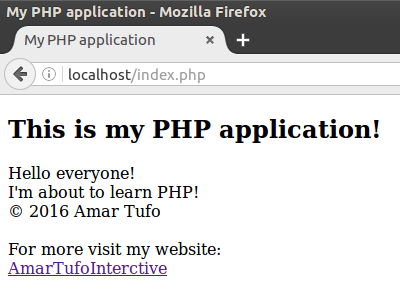
Posljednje stvar koja nam je ostala jeste pokretanje PHP datoteke što je veoma jednostavno. Sve što treba da uradimo jeste da otvorimo naš Firefox ili Chromium browser te unesemo: localhost:/index.php. Ukoliko ste sve uradili kako sam pisao u ovom članku, onda biste trebali dobiti ovako kao i ja:
Slika: Pokretanje index.php datoteke
Ukoliko dobijete ovakav rezultat u vašem browseru to je znak da ste uspješno instalirali PHP na vaš Ubuntu te da vaša aplikacija uspješno radi.
Šta reći na kraju?
Ovaj članak je imao namjeru da vam pokaže kako instalirati i pokrenuti PHP aplikaciju na Ubuntu Linux? Sada možete da učite PHP i razvijate kompleksnije PHP aplikacije unutar vašeg Ubuntu-a. Tu je hrpa tutorijala koja vam stoji na raspolaganju od YouTube-a do odličnih i korisnih web stranica koje i sam koristim od CodeCademy-a do w3schools.com. Ja se iskreno nadam da vam se dopao ovaj članak i da vam je on pomogao da napišete i vi svoju Ubuntu PHP aplikaciju. Ukoliko vam se ovaj članak dopada, onda vas molim da ovo podjelite na društvenim mrežama sa svojim prijateljima, ostavite kritiku, komentar, sugestiju ili savjet.
Slika1: Ramses II u bitci kod Kadeša 1274. god. prije Krista
Prikaz iz Abu Simbela, Egipat
Prošlo je poprilično vremena od kada sam objavio pet knjiga iz Arheologije koje su dostupne za preuzimanje direktno s moje web stranice. Tako sam u okviru svojih interesovanja u oblasti arheologije i historije Starog Bliskog Istoka odlučio da podjelim i ovih pet izvrsnih knjiga namjenjenih isključivo studentima arheologije i historije ali i svim profesionalnim stručnjacima ovih oblasti.
U ovom kratkom članku imate priliku da preuzmete knjigu The Kingdom of Hittites, izvanrednog stručnjaka Hetitologije i profesora po imenu Trevor Bryce. Tu je također i unapređeno i nadopunjeno izdanje A History of the Ancient Near East, koje nam donosi Van De Mieroop kojeg sam koristio nekoliko puta kada sam pisao rad o starom gradu Alalaku gdje je Mieroop objavio autobiografiju kralja Idrimija (1600 - 1550. god. pr. Krista).
Pored knjige The Kingdom of Hittites, profesor Trevor Broyce nam također donosi i druge dvije knjige. Među njima je Letters of the Great Kings of Ancient Near East te Handbook of People and Places of Ancient Western Asia. Posljednja i po meni važna knjiga a ujedno i moja oblast kojom se intenzivno bavim jeste Sea People of the Bronze Age Mediterranean 1400 - 1000 BC, u kojoj Andrea Salimbeti i Raffaele D'Amato donose saznanja o Narodima s Mora, invazorima koji su krajem Kasnog Brončanog doba oko 1200. god. pr. Krista porušili mnoge priobalne gradove Istočnog Mediterana te okončali velike i moćne civilizacije poput Hetita a usput na svojim kretanjima oslabili i faraonski Egipat.
____________________
Video verziju ovog članka možete pogledati na mom YouTube kanalu. Obavezno like, share i SUBSCRIBE, to mi pomaže mnogo u kreiranju boljeg i kvalitetnijeg video sadržaja na svom kanalu.
__________________
The Kingdom of the Hittites - Trevor Bryce
The Kingdom of the Hittites izvrsnog autora Trevora Brycea predstavlja nadopunjeno izdanje koje objavljuje Oxford a čiji čitatelji imaju priliku da se upoznaju sa vojnom i političkom historijom Hetitskog carstva koje je nekada od 1800. god. prije Krista pa sve do 1200. god. pr. Krista gospodarilo velikom Anatolijom, Sirijom, dijelovima Armenije (nekada kraljevina Urartu) sve do granica Egipta. Imate priliku da iz prve ruke saznate o velikom Hetitskom kralju Muvataliju koji je s Ramzesom II tukao bitku kod Kadeša 1274. god. pr. Krista a koja je iznjedrila kasnije prvi historijski mirovni sporazum , imate priliku da se upoznate sa Mursilijem III bolje poznatim kao Urhi-Teshub te na kraju da pročitate o velikom Hatušiliju III koji je bio oženjen najmoćnijom ženom Starog Bliskog Istoka po imenu Puduhepa. Ovo je samo dio knjige koji sam iznjeno i onoga što čitatelja očekuje kao neprevaziđen izvor za poznavanje Hetitske historije uopšte. Inaće, arheolozi su se pokazali veliko interesovanje za Hetite pronalaskom glinenih tableta u Hetitskoj prijestolnici Hatuši (Bogaz Koy) negdje s početka 19. stoljeća kada ih je dešifrovao legendarni Beđih Hrozni.
The Kingdom of the Hittites možete preuzeti na ovom linku:
A History of Ancient Near East - Marc Van De Mieroop
Malo je knjiga koje se bave kako arheologijom pa tako i historijom Starog Bliskog Istoka kao što to čini autor Marc Van De Mieroop. Ovaj ugledni profesor i historičar u svojoj knjizi A History of the Ancient Near East, donosi zanimljive preglede postanka velikih civilizacija Starog Bliskog Istoka u njegovih 3000 turbulentnih godina prije Krista sve do Aleksandrovog osvajanja Babilona i Baktrije. Mieroop na interesantan način donosi razvoj moćnih imperija Sumera, Akada, Asirije, Elama, bogatih i moćnih državica (eng: city-states) koje su parirale velikim moćnim imperijama svoga doba kao što su bili Karkemiš, Kadeš, Alalak, Emar, Arzava, Kizuvatna, Ugarit i mnogi drugi. Niti jedan drugi autor nije obuhvatio kako historiju pa tako dosadašnja arheološka iskopavanja diljem Starog Bliskog Istoka kao što je to Mieroop. Ova knjiga zaslužuje svaku preporuku za pročitati a njen link za preuzimanje možete posjetiti ovdje.
A History of Ancient Near East možete preuzeti ovdje:
Sea People of the Bronze Age Mediterranean 1400 - 1000 BC
Andrea Salimbeti i Raffaele D'Amato
Narodi s Mora - tako su arheolozi prije jedno stoljeće nazvali misteriozne invazore koji su krajem Kasnog Bročnanog doba porušili veliki i bogate gradove Istočnog Mediterana, Anatolije, Bliskog Istoka, Levanta, Kanana, Krita, Sirije, Kipra, Egejskih ostrva došavši sve do Egipta. Sa njima se veliki faraon Ramses II susreo prvi put kod Kadeša i to na strani Hetita gdje su se borili Šerdana, jedan od poznatih Naroda s Mora. Kasnije su Šerdana bili plačenici u Egiptu, bili dio garnizona u Biblosu ali i Ramsesovi zaštitari. S druge strane, velike i neustrašive invazore konačno je potukao 1178. godine prije Krista Rames III u jednoj od najpoznatijih epizoda Egipatske historije i to u pomorskoj bitci na Nilu gdje su ovi invazori potučeni do koljena i izbrisani zauvijek s historijske scene.
Upravo naši istraživaći Salimbeti i D'Amato donose devet imena Naroda s Mora kao što su Peleset,Tjekeru, Šekeleš, Ekveš, Danana, Turša, Šerdana, Luka, Libu onako kako ih je pomenuo Merneptah, sin Ramsesa II koji ih je prije Ramsesa III porazio u Libiji te doveo u Egipat i na kraju Ramses III koji im je zadao 'smtrni udarac'. Na kraju treba dodati da od svih pomenutih grupa arheolozi su danas uspjeli da identifikuju samo Peleset Naroda s Mora koje povezuju sa Golijatovim Filistijcima koji su kasnije naselili Kanan. U svakom slučaju, veliku cijenu su platile moćne imperije i bogati trgovački gradovi koje su Narodi s Mora dokrajčili na svojim kretanjima a cio Istočni Mediteran bacili u Mračno doba. Već sam previše rekao pa ostatak možete pročitati u ovoj izvrsnoj knjizi čiji download link možete posjetiti ovdje.
Sea People of the Bronze Age Mediterranean 1400 - 1000 BC možete preuzeti ovdje:
Letters of the Great Kings of Ancient Near East - Trevor Bryce
U ovoj knjizi objavljenoj 2005. godine u Kanadi, Trevor Bryce, profesor Hetitologije na Aaustralijskom Univerzitetu u Kvinslendu nam donosi kolekciju diplomatskih prepiski koje arheolozi, historičari te egiptolozi poznaju kao El-Amarna pisma. Ova su pisma nastala u periodu između 1390. godine prije Krista za vremena vladavine faraona Amenhotepa III a protežu se i u period vladavine faraona Eknatona, faraona Tutankamona ali i kasnije u period vladavine faraona Ramzesa II (1279 - 1206. godina prije Krista).
Profesor Trevor Bryce u ovoj svojoj knjizi donosi seriju pisama među kraljevima Starog Bliskog Istoka među kojima je vrijedno pomenuti prepisku izaslanstva Asirskog kralja Ašur-ubalita - Egipatskom faraonu Eknatonu u vrijeme kada pod vladavinom Ašur-ubalita, Asirija izrasta u velesilu sjeverne Mezopotamije. Tu je i pismo Rib-Hadada, kralja Guble koji u 14. stoljeću piše faraonu Eknatonu žaleći se kako je ugrožen u svojoj domovini od strane vojne intervencije njegovog bliskog susjeda, Abdi-Aširte, kralja Amuru (danas Sirija). Na kraju pregleda sadržaja ove knjige vrijedi pomenuti sadržaj prepiski faraona Ramzesa II sa Hetitskim kraljem Hatušilijem III i njegovom ženom Puduhepom koji su 1260. godine prije Krista potpisali prvi, historijski dokumentovan, mirovni sporazum. Ovu knjigu možete preuzeti besplatno u .pdf formatu klikom na link dole ispod.
Handbook of Peoples and Places of Ancient Western Asia - Trevor Bryce
U ovoj svojoj trećoj knjizi koja se našla na mojoj listi, profesor Bryce nam donosi u ovoj sjajnoj knizi po imenu The Peoples and Places of Ancient Western Asia neke od poznatih historijskih mjesta Staroga svijeta kao što su Asirija, Babilonija, Hetitska država, Egipat, kraljevina Mitani do onih nepoznatih mjesta za koje i ja sam prvi put čujem. Među njima je Hassuwa, grad kojeg je u svojoj drugoj Sirijskoj kampanji zauzeo te razorio Hetitski kralj Hatušili 1 (c.1650 - 1620. godina prije Krista). Pored Hassuwe tu je i grad Kadeš (danas arheološki lokalitet Tell Nabi Mend) kod kojeg su se 1274. godine prije Krista sukobile dvije velesile Kasnog Brončanog doba, Egipat i Hetitsko carstvo.
Pored Kadeša na samom kraju pregleda ove knjige valja pomenuti i grad Megido (danas Tell Megiddo) u Izraelu koji je 1458. godine prije Krista bio poprište strahovite bitke i vojnog trijumfa legendarnog Egipatskog faraona Tutmosa III koji je ostao upmaćen u historiji Starog Egipta kao faraon-ratnik. Pored ovih izdvojenih lokaliteta i historijskih gradova, knjiga se sastoji od referenci na arheološke lokalitete i njihove lokacije, nazive historijskih gradova i njihovih pretpostavljenih lokacija te je izuzetno dobar izvor za proučavanje arheologije i kratkih arheološko-historijskih pregleda Starog Bliskog Istoka u više od 5000. godina njegove turbulentne historije. Ovu knjigu možete pogledati na Amazonu ili Google Books-u obzirom da download link ne posjedujem za sada, a kada ga budem pronašao ja ću izvesti ažuriranje i dodati ga ovdje ukoliko vas kniga zanima.
Obzirom da su Narodi s Mora i Kolaps Kasnog Brončanog doba u domenu mog interesovanja, onda vam toplo preporučujem da svratite na moj blog i pročitate neka moja razmišljanja po pitanju ove teme na sljedećem linku:
1. Šta je uzrokovalo misteriozni kolaps Kasnog Brončanog doba? (Amar Tufo)
Ako vam se dopada ovaj moj članak ne zaboravite da me posjetite na mom Facebook-u i LinkedIn-u te podjelite ovaj članak s vašim prijateljima. Ostavite komentar, kritiku i sugestiju, sve mi je ok dok su vaši komentari etički uljudni i ne vrijeđaju nikog ni na nacionalnoj niti vjerskoj osnovi. Hvala!
Večina prosječnih korisnika računara uopšte ne zna šta se nalazi ispod haube, odnosno, šta leži u kučištu samog računala te kako se pojedine komponente nazivaju i čemu one zapravo služe. Ima ih koji monitor smatraju računalom ali je to druga priča. No, ako ste ikada poželjeli sastaviti sopstevni računar a niste imali adekvatnu obuku ili to nikada niste ni pokušali od straha da ne napravite 'eksploziju' uz tutorijal firme Imtec i vi sada možete sastaviti sopstveni računar, brzo i jednostavno.
Ako ste gamer i ako provodite vaše dragocjeno vrijeme igrajući velike igrače naslove onda vam treba zasigurno poprilično jak računar sa sigurno 8 GB RAM-a, barem 2 GB nVidia grafičke, Intel i3 ili i5 procesorom, te sada već popularnim SSD diskovima koji ubrzavaju računar i daju mu performanse koje obični HDD jednostavno ne može da mu pruži. Osim toga, brzina nevjerovatno raste kada je u pitanju SSD u odnosu na HDD.
Stoga je nedavno firma Imtec na svom YouTube kanalu objavila izuzetan video tutorijal kako sklopiti svoj game računar lagano i jednostavno. Video tutorijal prikazuje adekvatnu instalaciju kako matične ploče, Intelovog procesora, instalacije RAM memorije do montiranja SSD diska i grafičke kartice u prozirno GIGABYTE kučište. Cio video pogledajte u prilogu ovdje.
Video prilog: Sklapanje računara - firma Imtec
Što reći na kraju do pazite kako spajate pojedine dijelove i komponente vašeg računara a ako pak ne znate, onda se slobodno obratite Imtecovom servis timu koji će vam sigurno pružiti savjete a možda dati i kratku obuku kako da sami sklopite računar.
Pogledajte u prilogu brzinu SSD diska u odnosu na HDD koje vam donosi YouTube kanal Asus North America:
We all know that Ubuntu Linux comes often with it's default wallpaper that isn't something special and therefore most of us change it for good. Same thing goes to default GTK themes of Ubuntu where you have option to select Ambiance or Radiance themes as well as the same set's of icon. So, this article is bringing you my top five favorite GTK+Icons themes that I usually install upon every fresh Ubuntu installation. The following GTK themes applied to Ubuntu 16.04 LTS or lower, it's up to you.
1. Install Unity Tweak Tool on your Ubuntu
~ Make sure that you have Unity Tweaks installed since you will need some tool to apply your newly installed themes or icons. In case that you don't have Unity Tweaks installed, here's a Terminal command to install it on your Ubuntu 16.04.
This command will install Unity Tweak Tool and you are ready to go.
Figure1: Unity Tweak Tool
1. Install Ambiance Crunch theme suite.
Screenshot taken by: Noobslab.com
Ambiance Crunch themes suite is a special theme pack designed for various Linux distributions featuring both KDE, GNOME, LXDE, Mate and Unity desktop environment. It comes in various colors so it will look very nice on your Ubuntu desktop or other Linux distribution you have chosen. The screenshot above features unique FS icons suite so I going to put them here together so you can install it with Ambiance Crunch theme.
In order to install Ambiance Crunch theme on Ubuntu 16.04 open the Terminal and insert the following command:
2. Install Vivacious Colors theme on Ubuntu Xenial.
Vivacious Colors theme is a new GTK/Icons theme released by RAVEfinity and is specially designed for Ubuntu Xenial and is one hell of GTK theme. With it comes a unique Vivacious Color icons set you can install alongside the GTK theme and give your Ubuntu desktop a whole new look. Here's a command to install Vivacious GTK theme on your Ubuntu.
When you install it, the icons will look like in the screenshot above. This theme is unique since the RAVEfinity, team behind the theme has make sure to produce the icons of the same name. You can install Vivacious Color icons via the following Terminal command.
Paper GTK theme brings a new material look to your Ubuntu Xenial and features some very elegant and solid look on your Ubuntu desktop. Paper GTK theme brings the same icon pack with it, so here's the Terminal command in order to install it:
Upon installation Paper GTK theme could be applied via Unity Tweak Tool and this how it looks like.
4. Install Flatabulous GTK theme on your Ubuntu
Flatabulous GTK theme is a new flat GTK theme for various desktop environments and Linux distributions. It can be installed on Ubuntu as well and will give your Ubuntu desktop a completely new look you been looking for. The screenshot above shows how the Flatabulous theme look like. Icon featured in the screenshot above is Oranchelo and I will give the command to install them as well.
You can intall Flatabulous GTK theme on your Ubuntu via the following terminal command:
If you like Ambiance GTK theme than you will probably like a whole new clone of that GTK theme. Presenting Yosembiance theme that look kind a cool and smooth as well on Ubuntu desktop. I did not check on other desktop variants but according to NoobsLab.com it looks cool. Heres the command to install it on Ubuntu Xenial.
Conclusion:
Well from all the GTK themes above I have personally installed Arc GTK theme and Vivacious Color icon theme that works well and looks pretty nice on my Ubuntu desktop. So it's up to you to chose your favorite GTK and icon theme and spread the word about it and how it looks like. If you like this article, please make sure to share it via social media, tell others about it and make sure to visit my Facebook fan page and other social media that I'm posting on. And remember: it's Ubuntu Linux - Linux for human beings!
________________
References:
For more about me you can visit my full bio at this link:
We have all celebrated Linux birthday on August 25 since it 'was' official date when Torvalds released it's Linux kernel v0.01. And it was good but according to article published on web site www.cio.com, Linux kernel was released couple day later and it was on September 17, 1991. Interesting for me was a fact that real name of Linux kernel in those days was actually FREAX. As I have read, Linus Torvalds confirmed all these information by it self on LinuxCon in Toronto, North America.
Image: Linux Kernel v0.01 | Released on September 17, 1991
For those who don't know, Torvalds originally named his kernel 'Freaks' - a mix of 'free', 'freak' and UNIX. But when his coworker uploaded the kernel to the FTP site, he didn't like the name and renamed it to Linux, without asking Torvalds (http://www.cio.com/article/3121811/linux/it-s-official-linux-was-released-on-september-17-1991.html). Here's the screen shot of the FREAX kernel I have take my self on my Linux desktop and see it my self:
Image2: Original FREAX kernel | Screen shoot
Back in 1992, Torvalds plan to release the Linux kernel under commercial license but he later states that he changed the license to GNU/GPL v2.0 in order to allow the contributors to help improve and develop Linux kernel for good. This the screen shoot of Linux kernel that was later renamed and published as Linux kernel:
Image3: Original Linux kernel | Screen shoot
So now we know the actual birthday of Linux kernel which was on September 17, 1991 and thanks to Linus Torvalds, the father of Linux that we today have on of the most successful GPL project and open source story in the world. It is thanks to Linux that the big companies such as Microsoft, Google, as well as Apple are open sourcing their AI and software for the global IT community and future of the world.
___________________________
Please make sure to check the original article about Linux release date here:
Malo je IT firmi u našoj zemlji koje se mogu pohvaliti, ako ne velikim prometom, onda zasigurno velikim brojem poslovnica. Takva je firma i Imtec. Imtec je osnovan nedavno te nastoji biti glavni zastupnik IT.a i računalne opreme u Bosni i Hercegovini. Sa devetnaest aktivnih poslovnica, Imtec uspješno posluje i predstavlja vodeći IT brand naše zemlje.
Slika: Imtecove poslovnice na području grada Sarajeva
U Imtec sam mnogo puta svračao ali i kupovao. Jedan od osnovnih razloga zašto kupovati u Imtecu jeste činjenica da je Imtec 24 sata na raspologanju svojim klijentima. Stručan tim mladih ljudi i prijatno osoblje će vam uvijek odgovoriti na sva vaša pitanja, upite i rado vam pružiti pomoć bilo da je u pitanju servis vašeg računala, laptopa, smart phone-a ili tableta.
Imtecova prednost u odnosu na konkurenciju jesu kvalitetne IT usluge koje Imtec već nekoliko godina uspješno pruža. To je firma koja je redovno u tijeku sa svim novijim IT trendovima. Nigdje drugdje u našoj zemlji nećete naći firmu koja ima stručan kadar za sve vodeće IT oblasti.
Slika2: Imtecova poslovnica u Cazinu
Image credits: TC Ljiljan, Cazin
Iako smo svjesni činjenice da PC industrija svakog dana sve više opada, Imtec nastoji da to nadomjesti prodajom visokokvalitetnih laptopa nove generacije koji će zadovoljiti business potrebe zahtjevnih klijenata ali i prosječnih home korisnika koji uglavnom surfaju internetom, pišu svoje dokumente ili koriste popularne društvene mreže poput Facebook-a, YouTube-a, Twitter-a, Instagram-a i drugih.
Slika3: Imtecova poslovnica Sarajevo City Centar
Image credits: SportSport.ba
Ako ste gejmer, Imtec i za vas ima idealno rješenje te pažljivo odabranu PC konfiguraciju koja koristi novije Intel i3 - i5 procesore sa većom količinom RAM-a i do 16 GB dovoljno da se pokrenu noviji igrači naslovi kao što je: Star Wars: Battlefront, Assassin's Creed: Syndicate, Call of Duty - Black Ops III, The Witcher 3 - Wild Hunt i mnogi drugi popularni naslovi.
U prilog Gejm računala iz Imtecove ponude preporučujemo sjajnu PC konfiguraciju koja će zadovoljiti i najzahtjevnije igrače:
Što reči na kraju? Ako tražite kvalitetnu IT uslugu, prijatno i stručno osoblje, kvalitetne proizvode vodečih IT brendova, onda je Imtec vaš pouzdan partner u IT svijet.
Ubuntu 16. 10 has been with us for a couple a times and for those of you still using Ubuntu 16.04, I think that it's time to move on and make an upgrade or clean install on Ubuntu 16.10. Why? Because, you're gonna miss all those cool features that Ubuntu 16.10 brings such as new and improved Ubuntu Software that now runs at higher speed than Ubuntu Software Center ever did, new Linux kernel 4.8, Unity desktop 7.5 and much more. So, weather you have already make an Ubuntu 16.04 upgrade or you plan to do so, please read this article because It may have something useful for you. In this article I bring my top 10 things to do after installing Ubuntu 16.10 that would make your Ubuntu Linux life much easier than ever. Here the list!
For those experienced Ubuntu users, when searching in Ubuntu Dash you get the annoying online search results. Most Ubuntu users including Ubuntu Community thinks that Amazon application presented back with Ubuntu 12.04 is nothing more than spyware. So when you search in dash online results popup which makes most of Ubuntu users sometimes dislike the Ubuntu it's self. But, here's a little Terminal script that will remove Amazon as well as Unity-web-apps out of Ubuntu for god.
Once you update your Ubuntu and log out and then came back again, Amazon app will no longer be available including annoying Dash online search feature.
2. Remove Guest-session from Ubuntu!
I personally dislike Guest account on Ubuntu. There are numerous reason you should disable guest account from your Ubuntu but one that reason is undesired access from other users who can still browse your files on your hard drives and so. But the second reason that Ubuntu Linux looks way better without guest account meaning that Ubuntu is all yours.
Warning: Using the following script can cause your Ubuntu running in low graphic mode! So, if you're not sure what you're doing, please keep you guest-account to prevent your data loss.
Here is the Terminal command in order to disable your guest-account on Ubuntu:
sudo apt-get install gksu
sudo apt-get update
So, first thing you need to do is to install gksu command line interface that will provide you access to main Ubuntu system files. Once gksu has been installed than copy the following command into Terminal:
gksu gedit /etc/lightdm/lightdm.conf
Once you execute this command in Terminal, a window will popup and ask your root password. Once you type it, a new window will popup where you have to put the following script:
All what you need to do is to save the lightdm.conf file and reboot the system and hopefully, your Ubuntu guest account wont be available anymore.
3. Disable error-report on Ubuntu!
While most Ubuntu users disagree disabling error report in Ubuntu, some users dislike annoying crashes and bug report and they remove this feature out of Ubuntu. But, it is highly recommended to keep error report since it allows Ubuntu developers to fix such problem and improve Ubuntu user experience. But just in case you dislike it and want to remove it, here's a nice Terminal command that will do the job:
sudo apt-get purge apport
sudo apt-get update
Once you update your Ubuntu and log out, you wont receive that annoying crash report again or any time sooner unless you don't upgrade or make a clean Ubuntu install.
4. Install BURG boot loader instead of GRUB!
BURG is very powerful boot loader for Linux distributions that allows the users to install nice and stylish boot loader than GRUB. GRUB is powerful as well as fast, but unlike BURG, GRUB brings that old text interface that looks very horrible for some users. So, if you decided to give BURG a try, here's how to install it in Ubuntu via Terminal:
Once you update your Ubuntu repositories and install BURG, now you have to install the BURG to correct partition via the following Terminal command:
sudo burg-install "(hd0)"
This command will install BURG on your Ubuntu Linux partition weather you use Ubuntu only or in dual boot. Next thing you have to do is to update the BURG via the following command:
sudo update-burg
Once the BURG has been updated you can chose your desired BURG theme or you can chose it upon boot. Anyway, here's the command to select your BURG theme:
sudo burg-emu
The themes that are available in BURG boot loader are displayed on the following screen shots.
5. Install Unity tweak tool!
Unity tweak tool is an amazing Ubuntu software that allows you to apply your favorite GTK theme or chose your favorite icons, chose the fonts and cursor theme, and other cool features that may come helpful to you. Unity tweak tool can be installed via Ubuntu Software or if you prefer you can install it using the following Terminal command:
Once installed, Unity tweak tool can be run using the Dash or by typing in terminal unity-tweak-tool and it will popup.
6. Install Cairo-Dock!
Cairo-Dock is very cool application dock and launcher that has dozens of cool features such as themes, application indicator and bunch of others cool things to play with. It makes your Ubuntu Desktop looks smooth and nicer. Also every new app that was installed in Ubuntu will be show in Cairo-Dock. Also to note that Cairo-Dock is available in the most of Linux distributions and you can install it on Ubuntu 16.04 via the Ubuntu Software by typing Cairo-Dock.
Once you install Cairo-Dock, you must set it as start up application of Ubuntu. This will make Cairo-Dock to start with your Ubuntu. The following image will help you to set Cairo-Dock as start up application.
If you're not sure how to do it, you can find video tutorial reference on the end of this article.
Arc theme is new GTK theme available in Ubuntu Linux 16.04 that gives your Ubuntu Desktop a completely new look. With proper icon theme, your desktop will be awesome. Simply to say, once you upgrade to any Ubuntu distributions you get those old Radiance or Ambiance icons as well as the GTK themes that aren't that cool. So, to make your Ubuntu stylish, here's how to install the Arc theme via the Terminal command:
In order to apply this newly installed theme, you can use Unity-tweak-tool and apply it and your GTK will look the same as in the picture above. Also you can install the Arc icon pack featured in the above image in order to make your theme complete. Here's the command you need to enter in Terminal:
You can apply the icons using the Unity-tweak-tool and than your Desktop will look the same as in screenshot above with your favorite wallpaper. It's up to you. 8. Install Papirus icons suite!
Officially designed for KDE desktop environment, but now available for Unity, Mate, Cinnamon, Gnome and others. Papirus is very cool icon suite that will improve the look of your Ubuntu desktop and make you proud. Icons are quite big and colorful. They came in two variants, the light and dark icon suite. Mostly available for Ubuntu 14.04, 15.04, 15.10 as well as 16.04, Mint and other Ubuntu derivatives. You can install it via Terminal using the following command:
As for the Arc theme you can apply the Papirus icon suite using unity-tweak-tool. Hope you like the icon suite and that it will suite you.
9. Install GIMP image editor!
GIMP or Gnu Image Manipulator is on of the most popular image editing application available in Linux world. I'ts free and open source but also on of the best alternative to popular Adobe Photoshop. Ubuntu users now that they can't install Adobe Photoshop, but you can still make some cool and awesome images by using GIMP. Also, there is very popular GIMP magazine and bunch of YouTube tutorials that can help you to become a GIMP professional image maker. GIMP is very cool and powerful image editor equipped with various features such as blend tool, scale image tool, layer cutter, layer selector and much more. If you think that GIMP is not cool image editor, than think again. Once you master it, you will be able to make something like this.
This is the banner of my official web page made in GIMP. I use rounded text layer and blend tool to make it like this. You can do to, or even better. You can install GIMP via Terminal using the following command:
sudo apt-get install gimp
10. Install Java Runtime!
Like they say, more than 3 billion devices running Java, from computers, smartphones, tablets, cars, even your own fridge and washing machine is running Java without you even now. So why not install it on your Ubuntu machine. Anyway, you can't watch those cool movies on popular streaming websites because you need to have Java Runtime. Here's how to install Java in Ubuntu via Terminal:
Once you install the Java using the above command, it's highly recommended that you update your Ubuntu repositories and restart your machine so that Java can take effect. Once it done, you can find Java Panel in Dash.
If Java popup that mean that you have install your Java successfully on Ubuntu and you're god to go.
Conclusion:
What to say at the end? Well, there is always so much thing to say, but hey, keep using Ubuntu because it's awesome, cool, free, stable and open source. Remember to wear an Ubuntu t-shirt, buy a cool Ubuntu sticker for your laptop or PC, picture you're self with Ubuntu t-shirt on your Instagram, write the articles about it, and spread the words. Uh, almost forgot, please make an upgrade from Ubuntu 16.04 to Ubuntu 16.10, you're gonna love it! Remember: "It's Ubuntu Linux - Linux for human beings".